

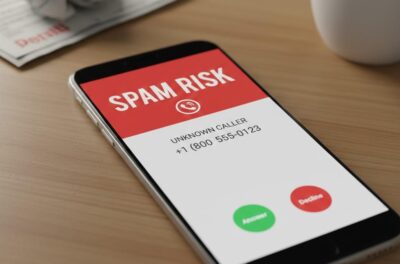
Spam calls and robocalls are out of control. If you’re looking for ways to stop them (and who isn’t?), we’ve got some options for you.
How To Stop Getting Spam Calls
More than 52 billion spam calls went out in 2024, according to the YouMail Robocall Index. It’s gotten to the point that you need every advantage you can get to keep the robocalls at bay.
The National Do Not Call Registry worked well for a while. Legitimate companies were generally very compliant, and the violations that did occur were rare. Those who did violate the law were subject to heavy fines. Unfortunately, illegal scammers and robocallers are still able to get through.
Another option is to avoid answering calls from unknown phone numbers. While this won’t prevent spam calls from ringing through, it can save you the pain of falling victim to scams.
In addition to adding your number to the National Do Not Call Registry and letting unknown callers go to voicemail, there are extra protections available to filter and block spam calls. These include security features available on your smartphone, from your phone service provider, and/or third-party apps that work to stop spam calls for good.
In this article, we’ll share the latest spam call prevention technology available to help you end spam calls in your life.
Call Screening and Silencing on iPhones and Androids
With call screening, incoming calls from unknown numbers will be answered and screened before you’re alerted. If the caller is likely spam, you’ll never hear the phone ring.
Now, with the latest features on iOS 26, Apple users have access to a call screening feature similar to Android’s.
On either type of device, call screening is simple to set up and use. In this section, I’ll share detailed steps to enable call screening on your Android or iPhone.
Call Screening on Android (Phone by Google)
Call Screen is a feature available to Android users through the Phone by Google app.
While automatic call screening is available on all Pixel phones in the U.S., manual call screening may be available on other Android devices. To see if your Android device supports call screening, make sure your Phone app is updated to the latest version. Then, follow these steps:
- Open the Phone app
- Tap “More,” then tap “Settings.”
- Tap “Spam and Call Screen” or “Call Screen”
- Follow the on-screen instructions
If there are no on-screen instructions or no “Call Screen” settings at all, your device doesn’t work with Call Screen. If Call Screen is available, choose your level of protection based on your device model.
- For Pixel 6 and below: Select the types of callers you’d like to screen under “Unknown Call Settings.”
- For Pixel 7 and above: Under “Protection Level,” toggle “Automatically screen calls” for spam, possibly faked numbers, and/or first-time callers
If you select automatic call screening, you’ll see a silent notification on your device during the call. You can view a transcript of the conversation live by tapping the notification.
Once the call has been screened, Call Assist will determine if it’s likely spam. Spam calls will be disconnected. Calls that aren’t spam will ring through, and you’ll be able to see how the caller responded during the screening.
To learn more about call screening on Pixel phones and other compatible Android devices, visit Google’s website. There, you’ll also find detailed instructions on how to enable manual call screening. With manual call screening, you’ll be notified of incoming calls from unknown numbers and can answer them, ignore them, or have Call Assist screen the call first.
If call screening from the Phone by Google app isn’t available on your device, check your device’s settings for alternative protections. For example, some Samsung Galaxy models offer a Smart Call feature that helps filter out unwanted calls. You can learn more about Smart Call for Galaxy devices here.
To enable call screening on your iPhone, follow these steps:
- Open the Settings app on your iPhone
- Tap “Apps,” then tap “Phone.”
From there, you can select one of the following options for call screening or silencing:
- Never: Call Screening is turned off, and your iPhone will ring when you receive a call from an unsaved number.
- Ask Reason for Calling: Calls from unknown numbers will be asked for more information before your iPhone rings.
- Silence: Calls from unsaved numbers will be silenced, sent to voicemail, and appear in the “Recents” list.
Call Screening on iPhone (iOS 26)
Apple’s latest operating system (iOS 26) has recently brought call screening features to iPhone users.
If you don’t want unknown or spam calls to appear in your call log at all, you can filter them out completely from the same settings screen. Under “Filter unknown and spam callers,” you can turn on one or both of the following options:
- Unknown Callers: Calls from unknown numbers are removed from your “Recents” list and sent to the “Unknown Callers” list.
- Spam: Calls identified by your carrier as potential spam or fraud are silenced, sent to voicemail, and moved to the “Spam” list.
For more information on call screening and blocking on iPhones, including detailed steps for older versions of iOS, visit Apple’s website.
In addition to not answering calls from callers that you don’t know, here are a few things that you can do to reduce spam and robocalls:
- Enable call screening and/or silencing on your smartphone. Select Android devices (including all Google Pixel phones) and iPhones running iOS 26 are equipped with call assist/call screening that can answer unknown numbers and determine if it’s spam. If it is, the call won’t ring through to your phone.
- Check out what’s available from your cell service provider. Now, all service providers are required by the FCC to have robocall-fighting technology, but each provider may offer additional free or paid features. Even if you aren’t with one of the major three providers, I recommend looking into what call blocking features you do have access to. For example, Spectrum offers Call Guard, and T-Mobile’s Scam Shield is available to Metro by T-Mobile customers.
- Try a free third-party app. If too many spam calls are still getting through, try downloading a free app like Truecaller, Call Control, Hiya, or YouMail.
- Silence unknown callers. This option is a bit risky because you could miss an important call from a doctor’s office or a contractor, but many phones will allow you to silence any calls coming through from numbers that aren’t in your contact list. A quick Google search will show you exactly how to silence unknown callers on an iPhone or a Samsung Phone.
- Try a paid robocall blocking app. In addition to free apps, there are premium features and paid apps that offer additional protection against spam calls. A few highly recommended apps that didn’t make my earlier list simply because they’re paid-only include Robokiller, Mr. Number, and Nomorobo.